How to Cancel Your TradeSyncer Subscription in 2026
TradeDupe
10 min read
Learn how to cancel your TradeSyncer subscription easily and avoid unexpected charges. Follow our comprehensive guide for a smooth cancellation!
Canceling a TradeSyncer subscription is defined as the formal termination of your recurring billing agreement, executed through your account dashboard or via direct support contact. TradeSyncer allows cancellation anytime through account settings or by submitting a request to their support team. Whether you are switching to a different trade copier, pausing multi-account operations, or simply reassessing your prop firm toolset, knowing the exact steps prevents unexpected charges and protects your billing record. This guide covers the full TradeSyncer cancellation process, from prerequisites to post-cancellation dispute resolution.
What you need before canceling your TradeSyncer subscription
Preparation eliminates the most common cancellation failures. Traders who arrive at the cancellation screen without the right information often abandon the process mid-flow, which leaves the subscription active and the next billing cycle charging as normal.
Gather the following before you begin:
- Login credentials. Your registered email address and password for TradeSyncer. If you use single sign-on through Google or another provider, confirm that access path is working.
- Billing cycle date. Log into your account and locate the next renewal date. TradeSyncer subscriptions remain active until the end of the current billing period after cancellation, so timing your request correctly avoids paying for an extra cycle.
- Subscription plan details. Know whether you are on a monthly or annual plan. Annual plans may have different cancellation terms than monthly ones.
- Support contact information. Have TradeSyncer's support email or live chat URL ready in case the dashboard option is unavailable.
- A secondary email or screenshot tool. You will need to capture confirmation as proof of termination.
Many traders underestimate the importance of reviewing billing cycles before canceling, which leads directly to unexpected charges on the next statement. Checking your renewal date takes 60 seconds and can save you a full month's fee.
Pro Tip: Set a calendar reminder three to five days before your next billing date. This gives you enough time to cancel, receive confirmation, and follow up if anything goes wrong before the charge processes.

How to cancel your TradeSyncer subscription through the dashboard
The dashboard cancellation method is the fastest and most reliable route for most users. It creates a digital paper trail and typically generates an immediate confirmation email.
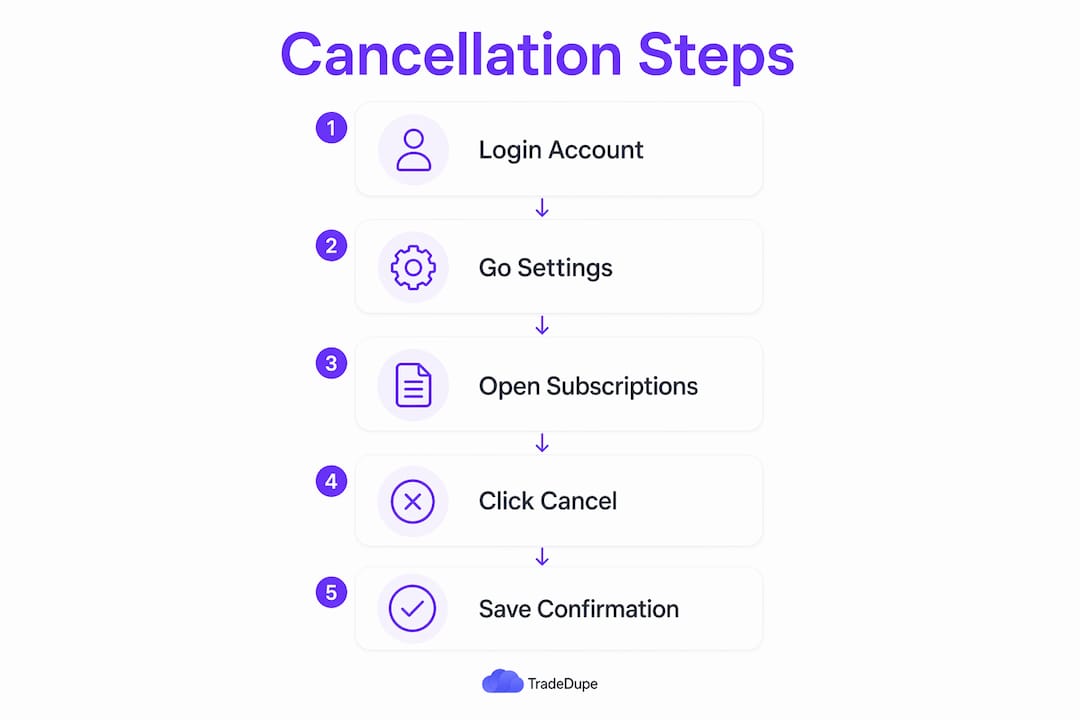
Follow these steps in order:
- Log into your TradeSyncer account. Go to tradesyncer.com and sign in with your registered credentials. Industry practice requires confirming user identity before processing cancellation to prevent accidental terminations.
- Navigate to Settings. Look for your account name or profile icon in the top-right corner. Click it to open the dropdown menu, then select Settings or Account.
- Open the Subscriptions or Plan section. Inside Settings, locate the tab labeled Subscriptions, Billing, or Account Plan. This is where your current plan details and renewal date are displayed.
- Click "Cancel Subscription." The cancellation button is typically located at the bottom of the plan details card. TradeSyncer may present a brief survey asking why you are canceling. Complete it or skip it, depending on available options.
- Confirm the cancellation request. A confirmation dialog will appear asking you to verify your intent. Click Confirm Cancellation or the equivalent prompt. This explicit confirmation step is standard across SaaS billing platforms to prevent errors.
- Check for a confirmation email. Cancellations should generate a confirmation email immediately after the process completes. This email is your primary proof of termination and your defense against any future billing disputes.
- Save the confirmation email. Archive it in a dedicated folder. Do not delete it, even after the billing period ends.
A few things to note about access after cancellation:
- Your TradeSyncer account and trade copying features remain active through the end of the current billing period.
- You will not receive a prorated refund for unused days in most cases.
- Auto-renewal is disabled immediately upon confirmed cancellation.
Pro Tip: Take a screenshot of the cancellation confirmation screen before closing the browser tab. If the confirmation email is delayed or lands in spam, this screenshot serves as timestamped backup documentation.
What to do when dashboard cancellation fails or auto-renewal triggers unexpectedly
Dashboard cancellation does not always work on the first attempt. Broken UI flows, session timeouts, or missing cancel buttons are reported across SaaS platforms, and TradeSyncer is not immune to these issues.
When the dashboard option is unavailable or unresponsive, contact TradeSyncer support directly using one of these channels:
- Email support. Send a written cancellation request to TradeSyncer's official support email. Include your full name, registered email address, account ID if available, and a clear statement that you are requesting immediate cancellation.
- Live chat. If TradeSyncer offers live chat, use it for real-time confirmation. Request a chat transcript at the end of the session.
- Help Center ticket. Submit a formal support ticket through the TradeSyncer Help Center with the same account details listed above.
Document every cancellation request with a timestamp. If you send an email, your email client timestamps it automatically. If you use live chat, save the transcript. This documentation is your evidence if a billing dispute arises.
> On accidental renewals: TradeSyncer's official policy does not guarantee refunds, but real-world user experiences show that goodwill exceptions do occur when users contact human support agents quickly and explain the circumstances clearly. Speed matters here. The sooner you reach a live agent after an unexpected charge, the better your odds of a favorable resolution.
Automated AI support channels are often insufficient for resolving complex billing disputes. Users report delays and generic responses from automated systems. Persist until you reach a human agent, especially for billing-related issues.
Pro Tip: When contacting support about a billing dispute, lead with your cancellation confirmation email or screenshot as the first attachment. Agents resolve cases faster when the documentation is front-loaded rather than buried in a long message thread.
Common mistakes to avoid when canceling your TradeSyncer account
Most cancellation problems are self-inflicted. The following errors account for the majority of continued charges and unresolved disputes among TradeSyncer users:
- Not confirming cancellation via email. Clicking "Cancel" in the dashboard without receiving a confirmation email means the cancellation may not have processed. Always verify with the email.
- Canceling too close to the billing date. Processing times vary. Canceling on the same day as your renewal date may not prevent the charge. Aim to cancel at least three business days before renewal.
- Using the wrong account. Traders managing multiple prop firm accounts across platforms like Apex Trader Funding or Topstep sometimes cancel the wrong account. Verify the account email before proceeding.
- Relying solely on automated support. As noted above, automated responses delay resolution for billing disputes. Always escalate to a human agent for anything involving charges.
- Deleting the confirmation email. This is the single most damaging mistake. Without the confirmation email, proving that you canceled before a charge becomes significantly harder.
- Ignoring the next billing statement. After canceling, check your next credit card or bank statement to confirm no charge was processed. Catching an error within the first billing cycle gives you the strongest grounds for a dispute.
Monitoring your account after cancellation is not optional. It is the final step in a complete cancellation process.
What to do if you are charged after canceling your TradeSyncer subscription
An unexpected charge after cancellation is frustrating, but it is resolvable in most cases if you act quickly and have documentation ready.
Step 1: Verify your confirmation proof. Locate your cancellation confirmation email or screenshot. Confirm the cancellation date and compare it to the charge date on your billing statement.
Step 2: Contact TradeSyncer support. Reach out via email or live chat with your confirmation proof attached. State clearly that you were charged after a confirmed cancellation and request an immediate refund.
Step 3: Understand the likely outcomes. The table below outlines common scenarios and realistic options:
| Scenario | User option |
|---|---|
| Charged after confirmed cancellation with email proof | Submit refund request with email proof; strong case for full refund |
| Charged after cancellation with no confirmation proof | Contact support; outcome depends on account activity logs |
| Accidental renewal due to missed cancellation deadline | Flexible exceptions exist when contacting human agents promptly |
| Refund denied by support | Initiate a chargeback with your bank or card issuer as a last resort |
Step 4: Escalate if needed. If TradeSyncer support denies your refund and you have solid documentation, contact your bank or credit card provider to initiate a chargeback. Provide the confirmation email, the charge date, and any support correspondence as evidence.
For context on how refund policies differ across trade copier platforms, TradeDupe publishes a transparent refund policy that outlines exactly what users can expect. Reviewing it before switching services helps you set accurate expectations.
Prompt communication and clear documentation increase the chances of resolving accidental charges favorably. Every day you wait after an unexpected charge reduces your leverage in the dispute.
Key takeaways
Canceling your TradeSyncer subscription requires completing the dashboard confirmation step, saving the confirmation email, and verifying your next billing statement to prevent unauthorized charges.
| Point | Details |
|---|---|
| Use the dashboard first | Navigate to Settings > Subscriptions and click Cancel Subscription for the fastest resolution. |
| Save confirmation proof | The confirmation email is your primary defense against post-cancellation billing disputes. |
| Time your cancellation correctly | Cancel at least three business days before your renewal date to avoid an extra charge. |
| Escalate to human agents | Automated support is insufficient for billing disputes; always request a live agent. |
| Monitor your next statement | Verify no charge processed after cancellation before considering the process complete. |
Why subscription management deserves the same discipline as trade management
Traders spend hours refining entries, managing drawdown limits, and protecting their prop firm evaluations. Most of those same traders treat subscription management as an afterthought, and it costs them real money. I have seen traders lose a full month's fee on a platform they stopped using simply because they assumed clicking "Cancel" was enough without waiting for the confirmation email.
The parallel to trading is direct. You would not exit a position without confirming the fill. You should not cancel a subscription without confirming the termination. The documentation habit that protects you in billing disputes is the same habit that protects you when a broker disputes a trade record.
The other pattern worth noting is the over-reliance on automated support. Traders who are comfortable working through complex order flow analysis somehow become passive when dealing with a billing department. Persistence with human agents, backed by timestamped evidence, resolves the vast majority of accidental renewal disputes. The traders who get refunds are the ones who contact support within 24 to 48 hours of the charge and lead with documentation.
If you are evaluating alternatives after canceling, the TradeSyncer alternatives comparison at TradeDupe covers the key differences in pricing, latency, and prop firm compatibility. Making an informed switch is always better than a reactive one.
> — Andres
Ready to explore a more reliable trade copier?
If you are canceling TradeSyncer and evaluating what comes next, TradeDupe is built specifically for prop traders operating on Tradovate. It mirrors trades across multiple follower accounts with a median latency of 34ms, supports prop firm accounts including Apex, Tradeify, Topstep, and Lucid Trading, and includes rogue-trade detection and per-account toggle controls so you stay in command of every position.
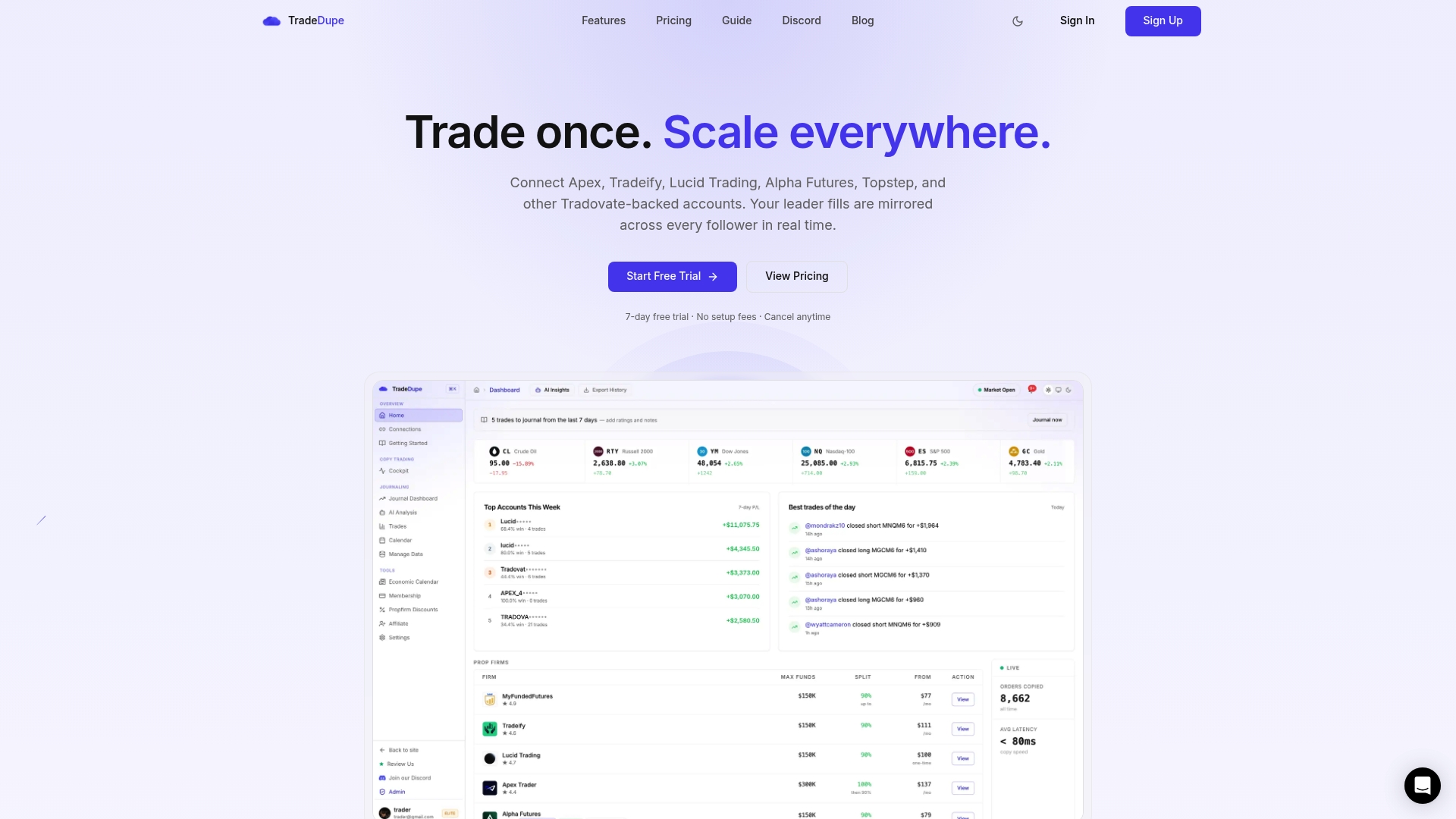
The platform offers tiered plans for individual traders and multi-desk operations, with a dashboard that gives you real-time sync status and account-level risk visibility. If your reason for leaving TradeSyncer is reliability, pricing, or lack of prop firm support, TradeDupe's copy trading platform is worth a direct comparison. You can also review the getting started guide to see how quickly setup takes before committing.
FAQ
How do I cancel my TradeSyncer subscription?
Log into your TradeSyncer account, go to Settings, open the Subscriptions or Billing section, and click Cancel Subscription. Confirm the cancellation when prompted and save the confirmation email as proof.
Will I lose access immediately after canceling TradeSyncer?
No. Your subscription stays active through the end of the current billing period after cancellation, so you retain full access until the cycle expires.
Does TradeSyncer offer refunds after cancellation?
TradeSyncer's official policy does not guarantee refunds, but goodwill exceptions occur when users contact human support agents quickly after an accidental renewal with clear documentation.
What happens if I cancel my TradeSyncer free trial late?
The 7-day free trial must be canceled before it expires to avoid being charged. The cancellation process for the trial mirrors the paid subscription cancellation steps exactly.
What should I do if the cancel button is missing from my dashboard?
Contact TradeSyncer support directly via email or live chat and submit a written cancellation request with your account details. Document the request with a timestamp to protect yourself if the next billing date passes before support responds.