
Bracket Orders in Futures: How Automated Exits Work
TradeDupe
9 min read
Discover how bracket orders in futures increase your trading efficiency by automating exits, minimizing risks, and enhancing profitability.
A bracket order is a single entry order paired with two contingent exits, a take-profit limit and a stop-loss stop-market, linked so that filling one automatically cancels the other. For futures traders, that One-Cancels-Other (OCO) structure automates exits and enforces risk control the moment a position opens, though the exact mechanics depend heavily on whether the platform executes the bracket server-side or client-side.
*
> TL;DR: > > - Server-side execution of bracket orders ensures continuous risk management even if the platform crashes, unlike client-side which relies heavily on stable connectivity. > - Proper sizing of stops and targets depends on capital risk, instrument volatility, and using ATR-based methods, avoiding fixed tick stops for dynamic markets. > - Testing bracket orders in a demo environment confirms whether the platform's OCO logic is server-side or client-side, which is critical for reliable risk control. > - Using stop-market orders guarantees an exit attempt during fast moves, but stop-limit orders risk failure if market gaps occur. > - Scaling brackets across multiple accounts requires automated mirroring tools to prevent errors and ensure consistent execution across all positions.
*
Table of Contents
- How Bracket Orders Work in Futures Trading
- How Do You Set Up Bracket Orders on a Futures Platform?
- How Do You Size Bracket Stops and Targets Correctly?
- Managing Bracket Orders During a Live Trade
- Common Bracket Order Mistakes to Avoid
- Bracket Orders Across Tradovate, TradeStation, and tastytrade
- Quick Bracket Templates You Can Copy
- A Prop Desk's View on Scaling Bracket Workflows
- Scaling Bracket Execution Across Multiple Tradovate Accounts
- Where to Verify Bracket Order Behavior
- Sources
How Bracket Orders Work in Futures Trading
A bracket order is really three orders acting as one unit. The parent order gets you into the trade. Once it fills, two child orders activate simultaneously: a limit order at your profit target and a stop order at your defined risk level. They're linked through OCO logic, so the instant either child fills, the platform cancels the other. No manual intervention required.
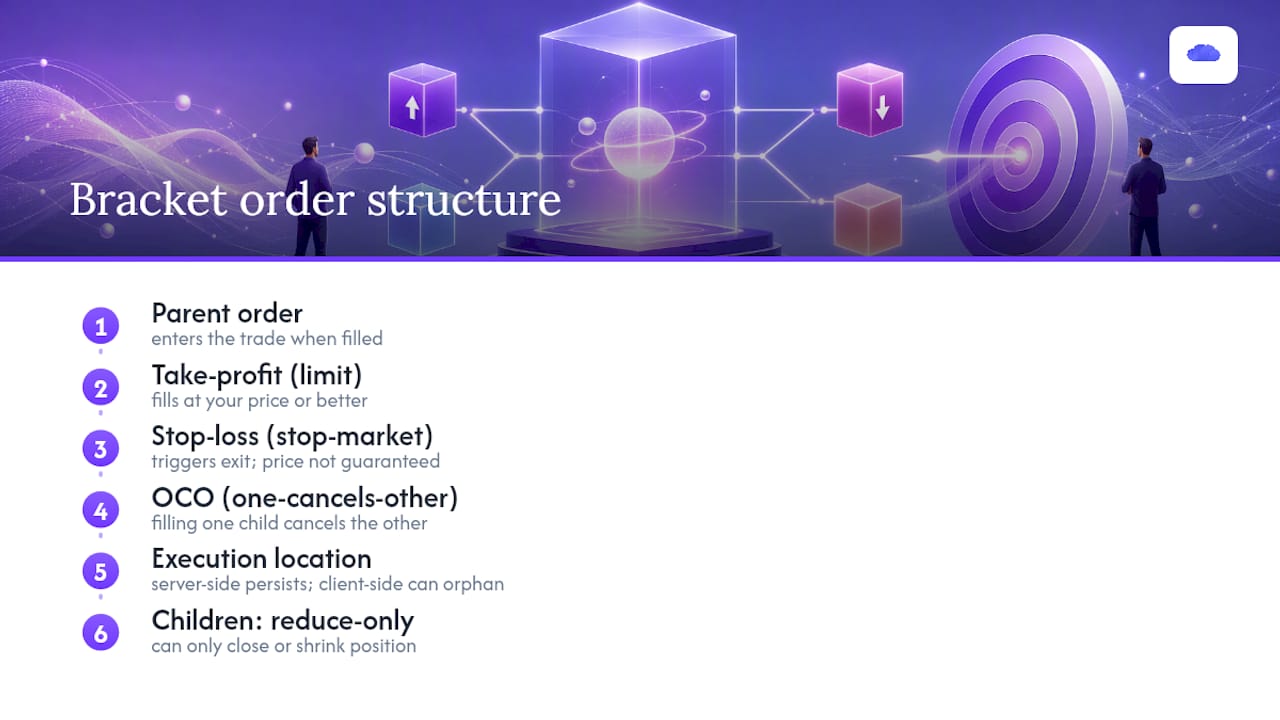
Most futures platforms treat these child orders as reduce-only, meaning they can only close or shrink an existing position rather than open a new one. That's a deliberate safeguard against accidental position reversal, and it's a structural feature across many derivatives platforms, not just futures-specific software.
The fill mechanics differ between your two children. The take-profit is a limit order, so it fills at your price or better, but only if the market actually trades there. The stop-loss is typically a stop-market order, which guarantees an exit attempt once triggered but not a specific price. In fast-moving contracts like the E-mini S&P 500 or Nasdaq futures, that gap between "triggered" and "filled" can mean real slippage.
The single most important distinction to understand before trading brackets live is whether your OCO logic executes server-side or client-side. Server-side brackets live on the broker's infrastructure, so they keep working even if your platform crashes or your internet drops. Client-side OCO depends on your software staying connected, and a dropped connection can leave one child order live with no counterpart, an orphan order sitting in the market with nothing canceling it.
How Do You Set Up Bracket Orders on a Futures Platform?
Setup workflows vary by platform, but the underlying steps are consistent enough to generalize.
- Enable the bracket or ATM feature. On Tradovate, this means turning on bracket orders in the Chart Module or Order Ticket, where you can define stop and target distances in ticks, price, or currency and save the configuration by contract, per Tradovate's own documentation.
- Choose your entry type. Market entries fill immediately at the current price; limit or stop entries wait for a specific level.
- Define stop and target distances, then save the setup as a named template tied to that contract. Tradovate specifically lets you choose "Take Profit AND Stop Loss," "Take Profit ONLY," or "Stop Loss ONLY" when configuring bracket presets.
- Place the entry from your chart or DOM, selecting your saved template. On TradeStation, this happens through a dedicated bracket settings dialog that lets you toggle OCO or OTOCO (One-Triggers-a-One-Cancels-Other) linkage. On tastytrade's desktop platform, bracket orders exist as a conditional order type applied to a new or existing position, described in tastytrade's help center.
- Verify the working orders appear in your order book once the parent fills. You should see both children listed as active, not just the parent as filled.
Before risking real capital, run a dry test in a demo or simulated environment to confirm whether your OCO is genuinely server-side. Watch what happens if you force-close the platform after a fill; if the counterpart order vanishes with it, you're dealing with client-side logic and need to know that going in.
How Do You Size Bracket Stops and Targets Correctly?
Sizing your bracket isn't guesswork, it's arithmetic tied to your account risk and the instrument's volatility.
- Calculate contract size from dollar risk. Divide your maximum dollar risk per trade by (stop distance in ticks × tick value). A position-size calculator removes the manual math and reduces sizing errors during fast sessions.
- Use ATR as your stop-distance baseline. Fixed tick stops ignore the fact that volatility changes by instrument and by day. E-mini S&P scalp stops often run 2 to 4 points, while Nasdaq futures typically need 5 to 12 points because of higher average session ranges.
- Set your target using R-multiples or structure. A 1:2 risk-to-reward ratio means your target sits twice as far as your stop; a measured-move target uses recent swing structure instead.
- Choose trailing brackets over fixed targets when a trend is running, and fixed targets when you're trading a defined range or scalping quick moves.
Pro Tip: Match your stop type to the instrument's ATR, not the other way around. A 3-tick stop that works fine on a quiet Tuesday in crude oil can get run over in seconds during an inventory report.
Managing Bracket Orders During a Live Trade
Placing the bracket is the easy part. Managing it while the market moves against or in favor of you is where discipline actually gets tested.
A common rule of thumb: once price has moved roughly 50% of the way to your target, move your stop to breakeven. This locks in a scratch trade at worst and removes the psychological pressure of watching a winner turn into a loser. When you shift the stop, confirm the take-profit order is still active and still OCO-linked to the new stop level, some platforms require you to modify the stop directly rather than cancel and resubmit, since resubmitting can temporarily break the linkage and create an orphan.
Trailing stops work the same way in principle, just automated. As price advances, the stop trails behind at a fixed distance or percentage, and the take-profit remains linked as the OCO partner.
If you need to cancel a bracket entirely, cancel the children first and confirm the parent's fill state before walking away. And expect stop-market fills to slip in thin, low-liquidity sessions like overnight futures trading, that's the tradeoff for guaranteed execution.
Common Bracket Order Mistakes to Avoid
Most bracket-order failures trace back to a handful of preventable errors:
- Assuming client-side OCO is server-side. Test it before trading live; a dropped connection shouldn't leave one child order stranded.
- Submitting child orders before the parent confirms filled. This can create phantom exposure or rejected orders.
- Using stop-limit orders for emergency exits. In fast markets, a stop-limit can trigger and then fail to fill if price gaps past your limit price; stop-market orders trade this precision for a guaranteed exit attempt.
- Miscalculating tick value or contract size. A single decimal error in your risk math can turn a planned $200 risk into a $2,000 one.
- Skipping the pre-live dry run. Test your bracket in simulation, confirm both children appear, then confirm cancellation behavior before funding the account.
Bracket Orders Across Tradovate, TradeStation, and tastytrade
The core OCO concept is universal, but the interface and depth of control differ meaningfully.
Tradovate builds bracket orders into ATM-style strategies with named, saved configurations per contract, accessible from both the chart and the DOM. TradeStation exposes bracket settings through a dedicated dialog with OCO and OTOCO options for more complex sequencing. tastytrade's desktop platform supports bracket orders as a conditional order type, though mobile functionality can lag behind desktop in configuration depth. Exchange-level validations also matter: some markets enforce reduce-only children or restrict you to a one-sided TP or SL rather than both simultaneously, a distinction worth checking against CFTC guidance for regulated futures products before assuming your bracket will behave identically across every contract you trade.
Quick Bracket Templates You Can Copy
Three starting templates, adjusted for your own account risk and instrument volatility:
- Scalp template (ES): 3-tick stop, 6-tick target, roughly 1:2 R:R, sized so total dollar risk matches your per-trade limit.
- Momentum day trade (NQ): 8 to 10 point stop, trailing target activated once price clears the initial 1R level, giving winners room to extend.
- Pullback entry (CL): Structure-based stop below recent swing low, fixed target at the next resistance zone, no trailing.
Before enabling any of these live, run through a short checklist: template selected and saved, position size calculated against account risk, server-side OCO confirmed through a dry run, and both child orders visible and confirmed in your order book after the parent fills.
A Prop Desk's View on Scaling Bracket Workflows
Running bracket orders across a single account is straightforward. Running them across a dozen funded accounts is a different discipline entirely. Prop desks that scale successfully standardize on a handful of tested templates rather than letting each trader freelance stop and target distances, and they lean on centralized monitoring to catch a mis-sized bracket before it compounds across every mirrored account.
Analytics matter more than most new desk operators expect. Watching sync status and fill confirmations in real time is what separates a desk that catches an orphaned order in seconds from one that discovers it an hour later. Test everything in demo first, and keep iterating on template sizing as instrument volatility shifts.
> — Andres
Scaling Bracket Execution Across Multiple Tradovate Accounts
Running tested bracket templates on one account is manageable by hand. Running the same brackets across ten or twenty funded Tradovate accounts is where manual execution breaks down, and where a mirroring error costs real money across every account at once.
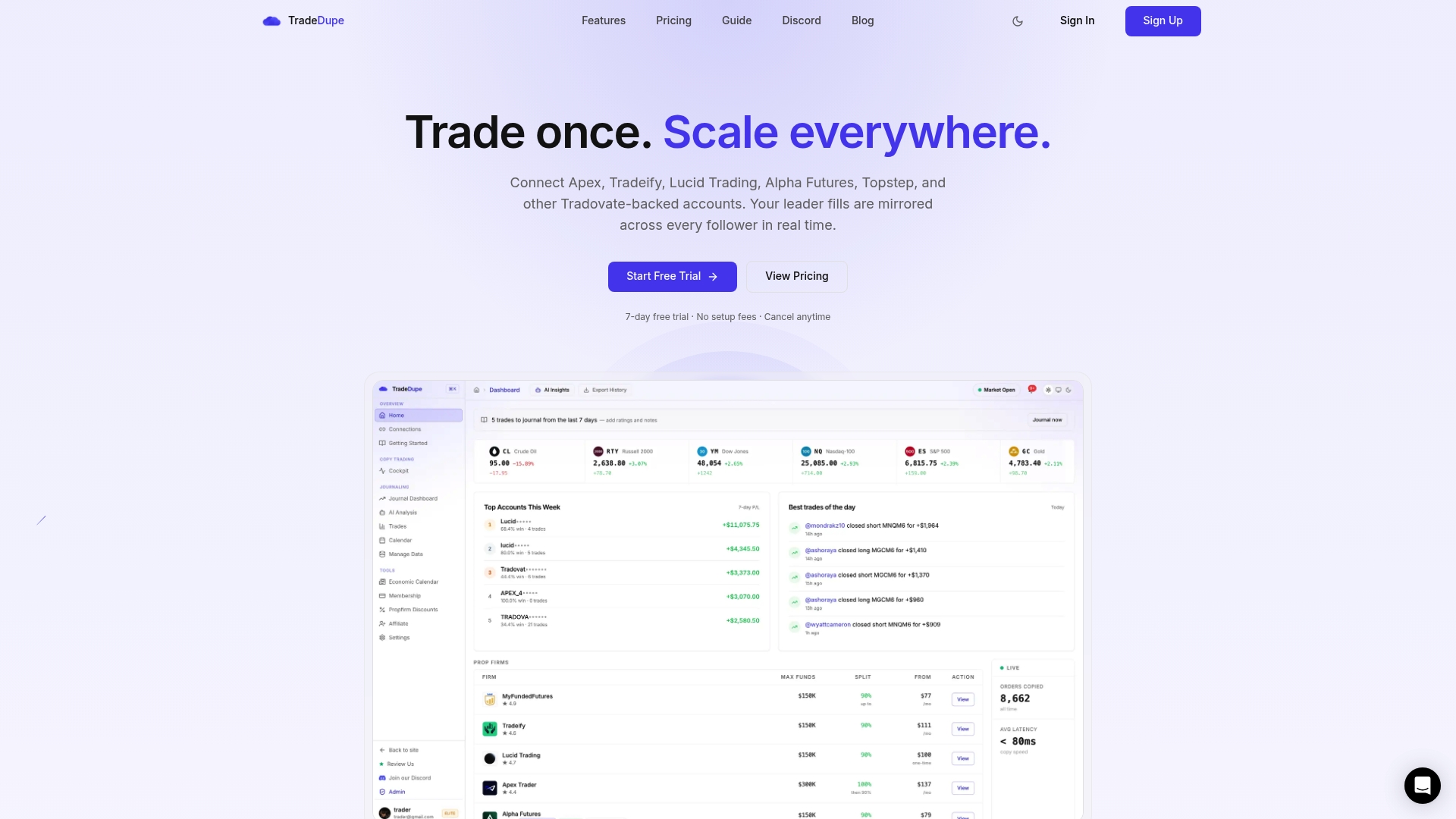
Tradedupe replicates a leader account's trades, brackets included, across every follower account with a median latency of 34 milliseconds, so a stop-loss or take-profit placed on your lead account mirrors instantly rather than getting keyed in one account at a time. Rogue-trade detection and auto-recovery catch a sync failure before it turns into an unprotected position on a follower account, and per-account toggle controls let you pull any single account out of the mirror without disrupting the rest. That's the practical gap between trading one account with saved templates and running a real multi-account desk on Apex, Tradeify, Lucid Trading, or Alpha Futures. If you're managing more than one funded account on Tradovate, walk through the getting-started guide and get your first mirrored account running in about ten minutes.
Where to Verify Bracket Order Behavior
Sources
- How Can I Place OCO Bracket Orders in the Chart Module? – Tradovate LLC
- How can I configure and/or activate bracket orders? – Tradovate LLC
- Bracket Orders - Help Center - Tastytrade
- Bracket Trading for Futures: The Complete Order Management System - NexusFi Academy
- TP/SL (bracket) behavior on derivative platforms — Coinbase help