
Why Tradovate Order Rejects Happen and How to Fix Them
TradeDupe
12 min read
Learn how to quickly resolve Tradovate order rejects by identifying their causes and applying effective fixes without needing support.
Most Tradovate order rejects come with a plain-text explanation. The fastest move you can make is to open the Orders module, double-click the rejected order, and read that message before doing anything else. The text will point you toward one of five root causes: insufficient margin or buying power, a price or tick violation, an expired or incorrect contract month, a prop-firm or platform quantity limit, or an API token and connection problem. Match the message to the cause, apply the fix below, and most rejections resolve without a support ticket.
Immediate actions (under one minute):
- Open the Orders module and locate the rejected order in the list.
- Double-click it to reveal the full rejection message text, as documented in Tradovate's official Order Rejection guide.
- Copy the Order Number, instrument symbol and contract month, timestamp (exchange time), and the full rejection message string.
- If the order was placed via API or automation, note the age of your access token and how many concurrent connections are active.
- For support tickets, also capture a screenshot of the order detail window.
Three rule layers govern every order on Tradovate: exchange rules (CME Group), the routing and risk engine (CQG), and your prop-firm or account-level settings. Most rejects originate at the CQG routing and risk layer, not from a random platform glitch. That framing matters because it tells you where to look first.
*
Key Takeaways
The fastest path through any Tradovate order rejection is reading the exact message text first, then matching it to the correct rule layer: exchange, routing engine, or prop firm.
| Point | Details |
|---|---|
| Read the rejection string first | Double-click the rejected order in the Orders module to get the full message before attempting any fix. |
| Three rule layers govern every order | Exchange (CME), routing engine (CQG), and prop-firm settings each enforce independent rules; identify which layer triggered the reject. |
| API users: renew tokens at 75 minutes | Most HTTP 401 errors cluster around the ~80-minute token expiry; renewing early eliminates this class of failure. |
| Escalate with Order Number and screenshots | Include Order Number, timestamp, full rejection message, and account ID in every support ticket for faster resolution. |
| Tradedupe for multi-account control | Tradedupe provides per-account limits, unique order ID management, and auto-recovery to reduce automation-caused rejects across funded accounts. |
*
Table of Contents
- Why does Tradovate reject orders? Finding the reason in the Orders module
- How to pull order details from the Reports module
- The most common Tradovate order rejection causes and how to fix each one
- What to do when orders keep rejecting: triage checklist and support template
- Advanced FIX tag mapping: OrdRejReason (Tag 103) and CxlRejReason (Tag 102)
- Practical habits that prevent most Tradovate order rejections
- Why most rejects are rule-driven, not random
- Multi-account Tradovate traders have a faster path through Tradedupe
- Sources
Why does Tradovate reject orders? Finding the reason in the Orders module
The Orders module is your first diagnostic stop. Here is the exact sequence to pull the rejection text:
- From the Tradovate Web or desktop interface, open the Orders module from the main navigation.
- Apply a status filter: set Status = Rejected to isolate failed orders from the full list.
- Sort by Time (descending) so the most recent rejection appears at the top.
- Double-click the rejected order row. A detail panel opens showing the full rejection message, the instrument symbol, contract month, ClOrdID, and session information.
- Copy the entire rejection message string verbatim, including any rule number or code (e.g., "Rule #555").
- Expand the columns if needed to see ClOrdID and session fields, which are critical for API troubleshooting.
- Take a screenshot of the detail panel before closing it.
The fields you need for any support ticket or self-diagnosis are: Order Number, instrument symbol and contract month, timestamp in exchange time, and the full rejection message text.
Pro Tip: Before editing and resubmitting an order placed from a chart, verify the chart's active symbol matches the current front-month contract. A chart pinned to an expired contract will keep generating the same rejection on every attempt.
*
How to pull order details from the Reports module
The Orders module shows live and recent orders, but it does not retain a permanent record of every historical order. The Reports module fills that gap, and it is the right tool when you need an exportable record for a prop-firm dispute, a multi-account reconciliation, or when the Orders module shows only "Rejected" without the longer error string.
Open Reports from the main navigation, select Order Details, enter the Order Number you copied from the Orders module, and click Go. The result includes fields like `ordStatus` and reason codes that are particularly useful for FIX and API troubleshooting, where the short message in the Orders module may truncate the full response. Export or screenshot the result before filing a support ticket.
The Tradovate Order Rejection help page confirms that both modules serve this diagnostic function. Reports provides the durable lookup by Order Number. Use the Orders module for immediate triage and Reports for anything older, archived, or requiring an exported record.
*
The most common Tradovate order rejection causes and how to fix each one
Understanding the cause behind a rejection message is what separates a 30-second fix from a 30-minute troubleshooting session. Below are the most frequently encountered causes, their example rejection strings, and the concrete fix for each.
Insufficient margin or buying power
- Example messages: "Insufficient buying power" / "Requested trade exceeds the account single trade margin limit"
- Fix: Reduce position size, close an existing position to free margin, or add funds. Check the Margin Table under Account Settings to confirm the current initial and maintenance margin requirements for your instrument. Note that between 3:45–4:00pm CT, Tradovate requires full initial margin for new positions, so orders that would pass at other times may reject during this window.
Maximum order quantity or prop-firm limits
- Example messages: "Your maximum order quantity has been met" / "Order Rejected — Rule #555"
- Fix: Reduce the order quantity below the enforced limit. Community reports confirm that these limits are often enforced server-side by the prop firm's risk rules, not the platform UI. Adjusting Max Position settings in Tradovate's Application Settings may have no effect until the prop firm's backend rules are updated. Request a risk-limit increase directly from your prop firm if the limit is too restrictive.
Expired or incorrect contract month
- Example messages: "Order is expired" / "Cannot place order outside Last Trading Date"
- Fix: Roll to the active front-month contract. Update any charts, watchlists, or automation scripts that reference the old symbol. This is one of the most common causes of repeat rejections after a contract rollover date.
Price or tick violations
- Example messages: "Price is not valid" / "Order price is outside allowed range"
- Fix: Verify the limit price aligns with the instrument's minimum tick size. Refresh your quote feed before resubmitting, as a stale quote can produce a price that falls outside the current allowed band. Switching to a market order is a valid short-term workaround when price discovery is the issue.
Market closed, pre-open, or restricted trading window
- Example messages: "Book is CLOSED" / "PRE_OPEN"
- Fix: Confirm the exchange calendar for your instrument (CME Group publishes session hours and holiday schedules). Avoid placing orders during the 3:45–4:00pm CT initial margin window, pre-open periods, or exchange holidays.
Self-match prevention or no liquidity
- Example messages: "Self Match Prevention" / "No liquidity to derive limit price"
- Fix: For self-match, adjust your strategy so resting orders on opposite sides of the book do not offset each other. For liquidity errors, switch order type or split the order into smaller lots.
Duplicate ClOrdID
- Example message: "ClOrdID already in use by an open order"
- Fix: Generate a unique ClOrdID for every new order submission. This is a common automation bug during retry logic, where a failed order is resubmitted with the same client order ID.
API token expiry or connection limits
- Example symptoms: HTTP 401 (Unauthorized) / HTTP 408 (Request Timeout)
- Fix: Community diagnostics show that most 401 errors cluster around the ~80-minute token expiry window, and 408 errors typically indicate exceeded concurrent connection limits. Renew tokens before 75 minutes, reduce concurrent connections, and never share a token across multiple applications simultaneously.
Pro Tip: Before requesting a platform limit change, confirm which layer enforces the rule: exchange (CME), routing engine (CQG), or your prop firm. Changing a Tradovate setting has no effect on a prop-firm-enforced rule, and vice versa.
*
What to do when orders keep rejecting: triage checklist and support template
When a single fix does not stop the rejections, work through this sequence before escalating.
Triage checklist (in order):
- Read the full rejection string from the Orders module. Copy it verbatim.
- Check your account's margin and buying power in the Margin Table.
- Confirm the symbol and contract month are current and the session is open.
- Review your prop-firm's active rules for per-order, per-day, and per-instrument limits.
- For API orders, check token age and active connection count.
- Test the same order in Simulator mode to isolate whether the rejection is account-specific or configuration-specific.
Support ticket template:
Include these fields in every ticket to Tradovate support:
- Order Number (from the Orders or Reports module)
- Timestamp in exchange time
- Full rejection message (exact text, not a paraphrase)
- Instrument and contract month
- Account ID
- Order placement method (UI or API)
- Screenshots of the order detail panel and account margin summary
- Recent account changes (funding events, risk limit requests, prop-firm rule changes)
Escalation guidance: Call Tradovate support when you are in-session with open positions affected by a market halt or forced liquidation. Submit a ticket for configuration questions, historical order diagnostics, or prop-firm rule disputes. Community threads on the Tradovate forum document that "Liquidation Only" and "Maximum order quantity" are among the most frequently reported rejection messages, and these are almost always enforced on the clearing or prop-firm side.
*
Advanced FIX tag mapping: OrdRejReason (Tag 103) and CxlRejReason (Tag 102)
For API users and traders building or debugging automated systems, the rejection reason surfaces in two different FIX tags depending on the message type. The FIX mapping reference documents that OrdRejReason (Tag 103) applies to NewOrderSingle rejects (Execution Report, MsgType 35=8), while CxlRejReason (Tag 102) applies to Order Cancel Reject messages (MsgType 35=9). The same business condition can map to different enumeration values depending on which message type triggered the rejection.
Note: Tag 103 and Tag 102 enumeration values vary by routing engine configuration. Treat the values above as typical starting points for CQG-routed Tradovate orders, not as guaranteed universal mappings.
Practical debugging tips for API users:
- Log the full Execution Report or Order Cancel Reject message, including raw FIX tags, not just the human-readable string.
- Include raw FIX tag output in your support ticket — it cuts diagnosis time significantly.
- Implement token renewal at 75 minutes, not 80, to avoid the expiry boundary.
- Generate a new ClOrdID on every retry. Reusing the same ID after a failed submission is one of the most common automation bugs and produces a "ClOrdID already in use" reject on the second attempt.
- Watch for asynchronous timing issues: a delayed acknowledgment followed by a retry with the same ClOrdID can create a duplicate submission that appears as an intermittent failure.
*
Practical habits that prevent most Tradovate order rejections
Prevention is faster than diagnosis. These habits address the most common repeat-rejection patterns.
Daily account hygiene:
- Run a morning check of account balances, available margin, and buying power before placing the first order.
- Confirm the active contract month for every instrument you trade, especially in the week before and after a rollover date.
- Review your prop-firm's current scaling rules and per-order limits. Keep a short private reference document with your firm's enforced limits by instrument.
- Schedule a weekly audit of Risk Settings under Account Settings to catch any configuration drift.
Automation and API controls:
- Use a UUID or timestamp-based ClOrdID generator so every order submission carries a unique identifier, even during retry logic.
- Implement token renewal at 75 minutes (not 80) to stay clear of the expiry boundary.
- Limit concurrent API connections to the number your account tier supports.
- Add pre-send validation in your automation: check tick size alignment, confirm the symbol is front-month, and verify the session is open before submitting.
- Test every new automated strategy in Simulator mode with logging enabled before running it live. This surfaces configuration errors without real capital at risk.
Operational monitoring:
- Subscribe to CME Group's exchange calendar for your instruments to catch holiday and settlement window changes.
- Check the Tradedupe status page and Tradovate's platform status before assuming a rejection is account-specific during unusual market conditions.
- Use the economic calendar to avoid placing orders around high-impact releases that can trigger temporary liquidity gaps or price band violations.
*
Why most rejects are rule-driven, not random
The pattern that repeats across every Tradovate troubleshooting thread is this: traders treat rejections as platform errors when they are almost always rule enforcement. Tradovate surfaces messages from the CQG routing and risk engine, which documents a large set of reject codes for margin, price bands, quantity limits, and session rules. The platform is not malfunctioning. It is telling you exactly which rule your order violated.
The single highest-leverage habit is to log every rejection with its full message string, the order context, and the fix that resolved it. That cheat sheet is worth more than any generic troubleshooting guide, because it is calibrated to your instruments, your prop firm's rules, and your automation stack.
Run new automations in Simulator with logging on. Keep the cheat sheet. The traders who spend the least time on rejections are not the ones who never get them. They are the ones who resolve each one in under two minutes because they have seen it before.
*
Multi-account Tradovate traders have a faster path through Tradedupe
When you are managing multiple funded accounts across Apex, Tradeify, Lucid Trading, or Alpha Futures, a single misconfigured order can cascade into rejections across every follower account simultaneously. That is the scenario Tradedupe was built for.
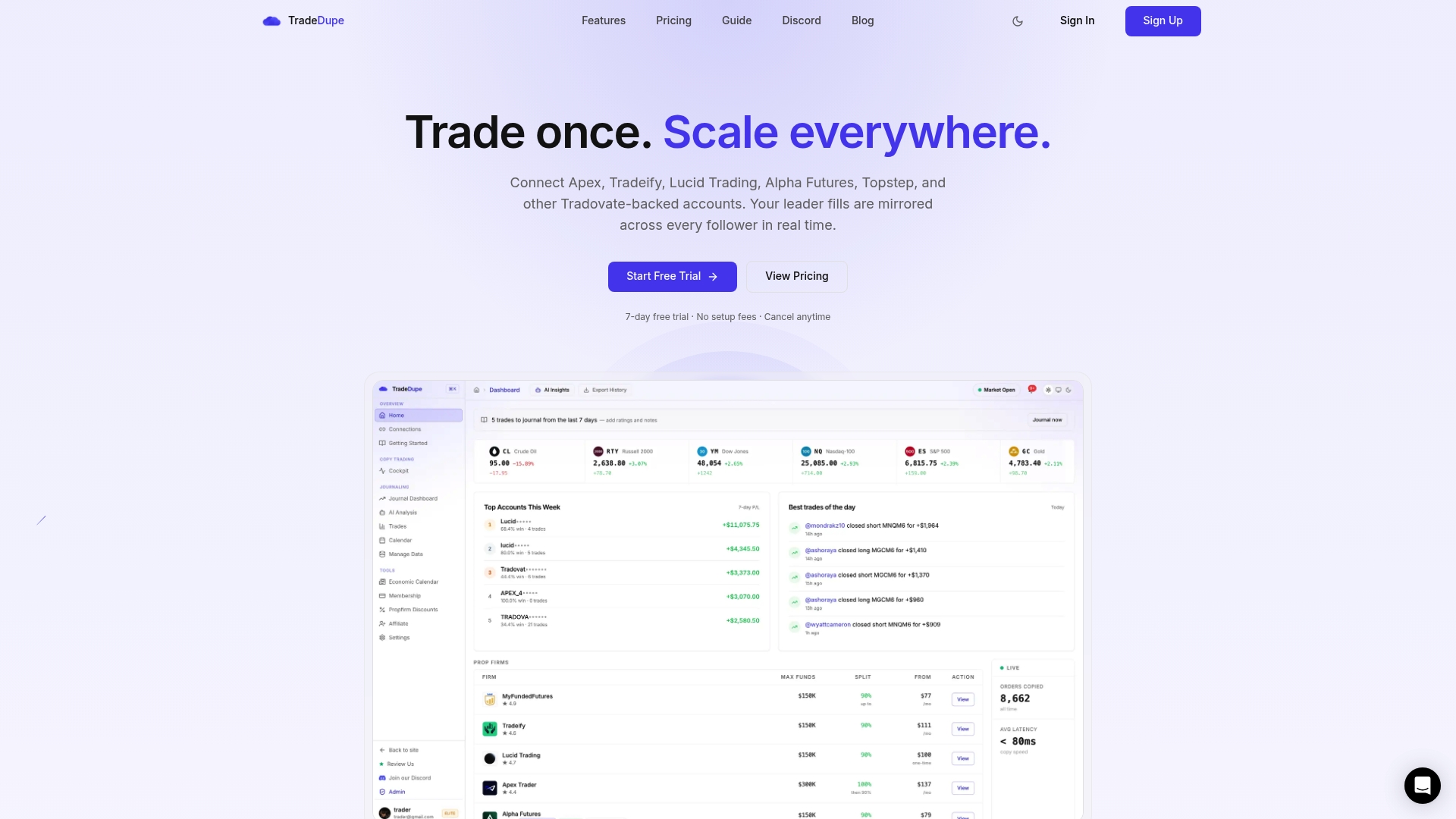
Tradedupe's Tradovate trade copier gives you per-account quantity limits, rogue-trade detection, and auto-recovery so that a reject on one account does not propagate to the rest. The platform generates unique order IDs for every mirrored trade, handles token renewal automatically, and provides a real-time dashboard showing sync status and rejection events across all connected accounts. For prop traders running multi-account copy trading setups, that visibility cuts root-cause analysis from hours to minutes.
If you are ready to reduce automation-caused rejects and manage per-account risk from a single interface, start with the Tradedupe Getting Started guide to connect your first Tradovate accounts in under ten minutes.
*
Sources
When you need to cross-check a rejection message, verify a rule, or find community-documented fixes, these are the authoritative sources to consult.
Official Tradovate documentation:
- Order Rejection - Tradovate
- Order Rejected - Maximum order quantity - Community Support - Tradovate Forum
FIX protocol reference:
Community troubleshooting threads:
Comprehensive error code reference:
When filing a support ticket that references a specific rule number or code, include the direct link to the relevant source above. It gives the support team immediate context and reduces back-and-forth.
This article is general information, not a substitute for advice from a qualified financial advisor. Consult a qualified financial professional about your own circumstances before acting on anything here.