Tradovate Prop Desk Setup Checklist for 2026
TradeDupe
10 min read
Ensure your success with our comprehensive Tradovate prop desk setup checklist for 2026. Avoid costly mistakes and trade confidently!
A Tradovate prop desk setup checklist is defined as the ordered sequence of credential management, live data activation, workspace configuration, Group Trading compatibility checks, and multi-account order flow verification required before a prop trading desk goes live. Skipping any single step creates operational risk that compounds across every follower account you run. This guide covers each checklist item with the precision that professional prop traders and desk managers need to run Tradovate-based operations without preventable errors in 2026.
1. Tradovate prop desk setup checklist: start with credential management
Prop traders on Tradovate receive credentials directly from their prop firm dashboards. You do not create a Tradovate account independently. Apex Trader Funding, Tradeify, Lucid Trading, Alpha Futures, and Topstep each provision login details through their own portals, and those credentials are what you enter on the Tradovate platform.
Credential errors are the most common cause of failed first logins. Before entering anything, verify the following:
- No leading or trailing spaces in your username or password fields. Copy-paste errors from email clients frequently introduce invisible characters.
- Correct account environment: confirm whether your firm has provisioned a live account or an evaluation account, since the credentials differ.
- Session limits: Tradovate enforces active session caps. Logging in from two browsers simultaneously can trigger forced logouts mid-session.
- Desktop browser first: initial login via desktop browser is the recommended path for signing platform agreements and completing initial setup, not the mobile app.
Pro Tip: Save your firm-provided credentials in a password manager like 1Password or Bitwarden, not in a browser's native save function. Browser-saved passwords are the first thing that breaks when you clear cache before a trading session.
2. Activating live market data: timing and agreement requirements
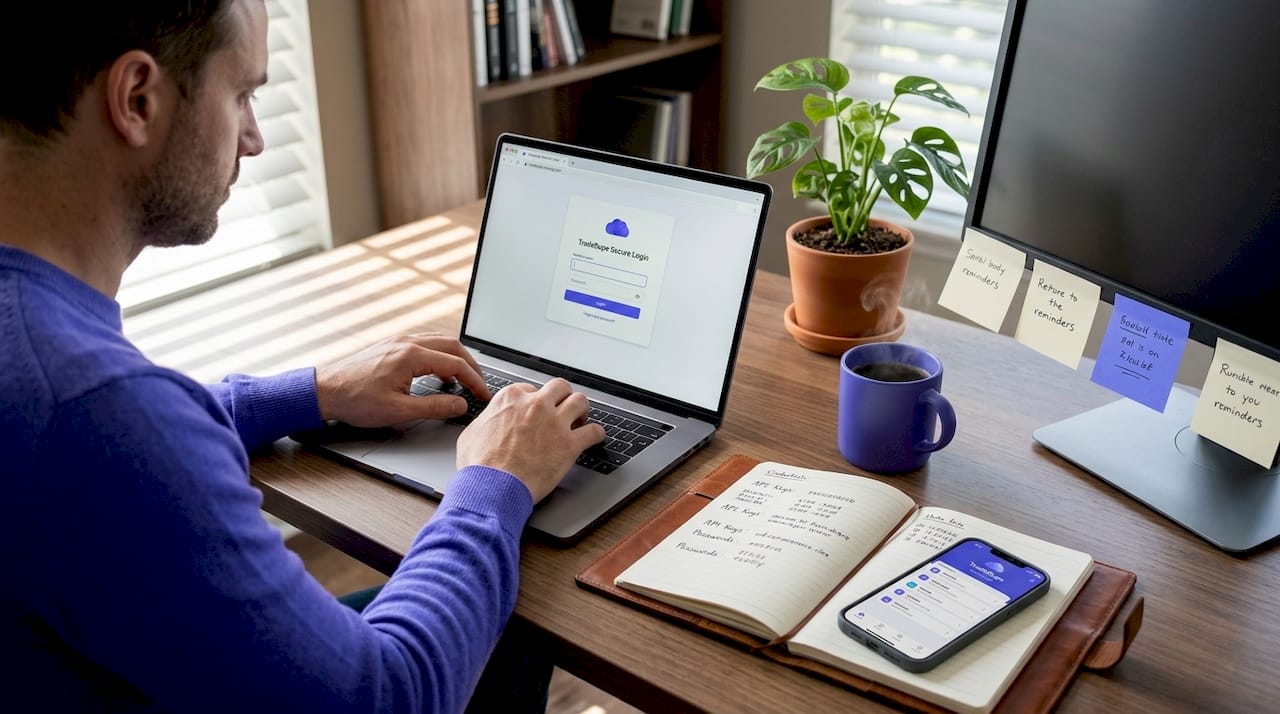
Live market data on Tradovate is not automatic. Signing the Non-Professional Data Agreement is a mandatory prerequisite, and activation after signing takes between 10 and 90 minutes. That window matters operationally: trading on delayed data without realizing it is one of the most dangerous errors a prop desk can make.
Here is the activation sequence to follow:
- Log in via desktop browser using your firm-provided credentials.
- Locate the data agreement prompt in your account settings and sign it immediately upon first login.
- Note the exact time you signed the agreement.
- Check instrument color coding: orange instruments indicate delayed data. Live data instruments display without the orange indicator.
- Wait a minimum of 90 minutes before submitting any support ticket for missing live data. Premature troubleshooting before the activation window closes is the most common setup failure among new prop firm users.
- Only after confirming live data is active should you proceed to workspace configuration.
The 10 to 90 minute activation window means your go-live time must be scheduled with buffer built in. If your desk opens at 9:30 AM Eastern, your agreement signing target is no later than 8:00 AM. Build this as a timed step in your runbook, not an afterthought.
3. Customizing your workspace for multi-account operations
A saved, consistent workspace is not a convenience feature. Consistent module layouts reduce operator errors during high-stakes multi-account trading, particularly when you are monitoring positions across multiple prop firm accounts simultaneously.
The core modules every prop desk workspace should include are:
- Charts: at minimum one primary instrument chart with your preferred time frame loaded
- SuperDOM: for order flow visibility and rapid order entry
- Accounts panel: displays all connected accounts and their real-time balance and margin status
- Orders panel: shows active, working, and filled orders across all accounts
- Positions panel: live position tracking per account
- Watchlist: pre-loaded with your primary instruments
- Time and Sales: for reading tape and confirming fills
Once you have positioned these modules, save the workspace under a named profile. Custom workspaces sync across devices, meaning your desktop layout is available when you log in from a secondary machine. This matters for desk continuity if your primary workstation has a connectivity issue mid-session.
| Module | Primary function | Priority level |
|---|---|---|
| SuperDOM | Order entry and order flow depth | Critical |
| Accounts panel | Real-time balance and margin per account | Critical |
| Positions panel | Live position tracking across all accounts | Critical |
| Charts | Price action and technical context | High |
| Time and Sales | Fill confirmation and tape reading | High |
Pro Tip: Create two saved workspace profiles: one for pre-market preparation with economic calendar and watchlist front and center, and one for active trading with SuperDOM and positions dominant. Switching between them takes seconds and eliminates cognitive load during the open.
4. Understanding Group Trading and order-type limitations
Group Trading is Tradovate's native multi-account order replication feature, and it carries constraints that every prop desk checklist must address before going live. Bracket orders are unsupported during Group Trading, and follower accounts cannot independently create or modify orders. All order logic originates from the lead account.
This has direct implications for your exit strategy. If your standard approach relies on bracket orders to set a profit target and stop loss simultaneously at entry, that workflow breaks in a Group Trading configuration. You must plan exits manually from the lead account or use separate stop orders placed after entry.
> "Planning order placement and exit strategy per account is critical as follower accounts have limited control in Group Trading configurations." This is not a minor limitation. It is a fundamental shift in how order execution responsibility is distributed across your desk.
Before activating Group Trading, verify the following checklist items:
- Bracket order dependency audit: identify every strategy or playbook that uses bracket orders and replace with manual or single-leg stop orders.
- Follower account permissions: confirm that follower accounts are correctly linked to the lead account in your Group Trading configuration.
- Lead account order flow: all entries, exits, and adjustments must be executed from the lead account only.
- Market orders for synchronization: using market orders rather than limit orders in multi-account copying prevents synchronization failures caused by price movement between the lead fill and follower fill attempts.
Starting with platform-native Group Trading before moving to third-party copy tools is the lower-risk path for new desk configurations. Understand the native limitations first, then evaluate whether external automation adds value.
5. Troubleshooting common prop desk setup issues
Most Tradovate prop desk setup failures fall into three categories: session conflicts, data feed interruptions, and network instability. Each has a specific resolution path.
Session conflicts occur when you exceed the platform's active session limit. The fix is straightforward: log out of all sessions from the account management panel, then log back in from a single device. Limiting to two active sessions and using wired Ethernet rather than Wi-Fi are the two most effective stability measures for a prop desk environment.
Data feed interruptions are almost always caused by an unsigned or expired data agreement. If instruments revert to orange or data appears stale, check your agreement status in account settings before contacting support.
Network instability manifests as platform freezes or order submission delays. Two fixes address the majority of cases:
- Sync your system clock: an unsynchronized system clock causes Tradovate's WebSocket connection to drop. Use Windows Time Service or macOS Network Time Protocol to keep your clock accurate.
- DNS configuration: switching from your ISP's default DNS to Cloudflare (1.1.1.1) or Google (8.8.8.8) reduces latency on the data feed connection.
Pro Tip: Run a pre-session connectivity check every morning: confirm live data is active, verify your session count, and ping your broker's server. This three-step check takes under two minutes and catches 90% of issues before the market opens.
Key takeaways
A reliable Tradovate prop desk setup requires credential precision, timed data activation, a saved workspace, and Group Trading order-flow planning executed in sequence before any live trading begins.
| Point | Details |
|---|---|
| Credentials come from your firm | Never create a separate Tradovate account; use only firm-provisioned login details. |
| Data activation takes up to 90 minutes | Sign the Non-Professional Data Agreement immediately and build a buffer into your go-live schedule. |
| Saved workspaces reduce errors | Configure and save your module layout before your first live session to maintain consistency. |
| Group Trading disables bracket orders | Plan all exits manually from the lead account; follower accounts cannot modify orders independently. |
| Network stability is a checklist item | Use wired Ethernet, sync your system clock, and limit active sessions to prevent connectivity failures. |
What I've learned about prop desk setup priorities
The traders who struggle most with Tradovate prop desk configurations are not the ones who skip steps out of laziness. They are the ones who treat setup as a one-time event rather than a repeatable operational protocol. Every time you onboard a new prop firm account, whether it is an Apex Trader Funding evaluation, a Tradeify funded account, or a Lucid Trading position, the checklist starts from the beginning.
The live data activation timing issue is the one that surprises experienced traders the most. You can have a decade of futures trading experience and still sit down on day one of a new account wondering why your NQ chart looks wrong, not realizing you are trading on a 10-minute delayed feed because you skipped the agreement step. That is not a beginner mistake. It is a process failure.
My strongest recommendation is to treat the Group Trading order-type limitations as a strategy design constraint, not a platform bug. If your edge depends on bracket orders for risk management, you need to rebuild that exit logic before you go live with a multi-account setup. The platform is not going to change. Your playbook needs to adapt.
The workspace consistency point is underrated. When you are managing four or five prop firm accounts simultaneously and a fast-moving trade develops in the ES or NQ, you cannot afford to spend three seconds finding the positions panel. Your layout should be so familiar that your eyes go to the right place before your brain consciously directs them. That level of operational fluency only comes from a saved, consistent workspace you use every single session.
> — Andres
How TradeDupe extends your Tradovate prop desk setup
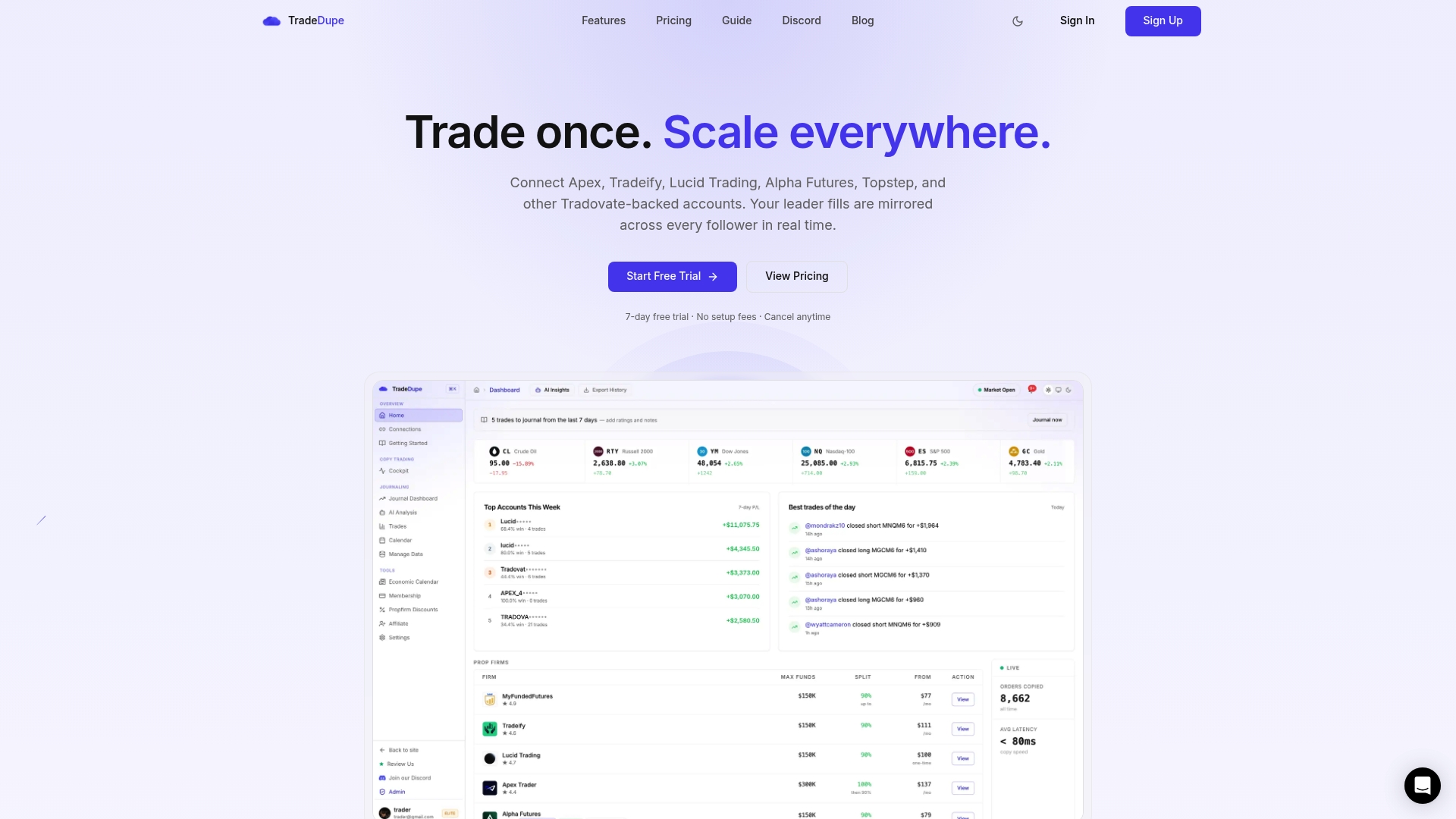
Once your Tradovate prop desk checklist is complete and your Group Trading configuration is verified, the next operational question is scale. TradeDupe is built specifically for prop traders running multiple Tradovate accounts across firms like Apex Trader Funding, Tradeify, Lucid Trading, Alpha Futures, and Topstep. Its real-time trade mirroring operates at a median latency of 34ms, with rogue-trade detection and per-account toggle controls that give desk managers precise oversight without manual intervention. For prop desks where Group Trading's native limitations create friction, TradeDupe's copy trading platform provides the automation layer that keeps every follower account synchronized with the lead. Explore the full feature set and start your setup at TradeDupe.
FAQ
How do I get my Tradovate login credentials?
Tradovate prop users receive credentials directly from their prop firm's dashboard. You do not register on Tradovate independently; firms like Apex Trader Funding and Tradeify provision your login details through their own portals.
Why is my Tradovate market data delayed after setup?
Delayed data means the Non-Professional Data Agreement has not been signed or has not yet activated. Activation takes between 10 and 90 minutes after signing; orange instrument labels confirm delayed status.
Can follower accounts place orders in Tradovate Group Trading?
No. Group Trading restricts all order creation and modification to the lead account. Follower accounts execute copies of lead-account orders but cannot independently enter, adjust, or exit positions.
What causes Tradovate platform freezes during trading?
The most common causes are an unsynchronized system clock, exceeding the active session limit, or network instability. Syncing your clock via NTP, limiting sessions, and using wired Ethernet resolve the majority of freeze issues.
Should I use market orders or limit orders in a multi-account setup?
Market orders are the preferred choice for multi-account copying because they guarantee simultaneous fills across all accounts. Limit orders risk partial fills or missed entries on follower accounts when price moves between the lead fill and the follower order submission.