Tradovate Group Trading: How It Works and Where It Stops (2026)
TradeDupe
12 min read
Tradovate Group Trade places one order across several of your accounts. Learn setup, the quantity rule, firm limits, and when a copier fits better.
Tradovate group trading is a built-in add-on that lets you place one order and have it fill on several of your own Tradovate accounts at once. It is enough for a simple setup, such as a few evaluation accounts and market or limit orders. It stops being enough when you rely on bracket orders (ATMs), trade from mobile or TradingView, or want one leader account to drive the rest. This guide covers how to set it up, the quantity rule that trips most people, what Apex and Tradeify say about it, and when a copier is the better fit.
TL;DR
- Group Trade sends one order to every account in a group on Tradovate, from the Tradovate web or desktop platform only.
- The order quantity must be a multiple of the group's combined total: 3 accounts × 2 contracts means 6, 12, 18 and so on.
- It does not handle bracket orders (ATMs) in groups, does not work inside TradingView, and is not in the mobile app.
- Group trading is for accounts you own and manage. Copying other people's trades breaks firm rules, so confirm yours with the firm's help center.
- If you want one leader account to mirror every fill to several followers, that is copy trading, a different tool.
Table of Contents
- What Tradovate group trading actually does
- Is Tradovate a broker, and can you hold several accounts?
- How to set up a Tradovate group, step by step
- The quantity rule that trips most traders
- What Group Trade cannot do
- Prop firm rules to confirm before you group trade
- Managing risk when one click hits every account
- When a copier fits better than a group
- Trying it on your own accounts
- FAQ
- Sources
What Tradovate group trading actually does
Tradovate describes Group Trade as an add-on that places trades across multiple accounts simultaneously with one click. You build a group out of your own Tradovate accounts, pick a per-account contract amount, and every order you submit is multiplied across the group.
The key point is where the order starts. In group trading, you place an order on the group itself, and the platform splits it. In copy trading, you trade on one leader account and the follower accounts mirror each fill. The result looks similar on your statements, but the workflow differs:
| Group Trade | Copy trading | |
|---|---|---|
| Where you trade | The group, in the Tradovate platform | One leader account |
| What gets copied | Orders you submit to the group | Fills on the leader |
| Brackets (ATMs) | Not allowed in groups | Depends on the tool |
| Platforms | Tradovate web and desktop | Depends on the tool |
| Per-account on/off | Edit the group | Depends on the tool |
Both are about trading accounts you own. Neither lets you trade someone else's money or follow another trader's signals under most firm rules.
Is Tradovate a broker, and can you hold several accounts?
Yes to both. NinjaTrader Clearing, LLC, doing business as Tradovate, is registered with the CFTC as a Futures Commission Merchant (the type of firm that holds customer funds and accepts futures orders) and is an NFA member, according to its FCM disclosure document dated July 31, 2025. Prop firm evaluation and funded accounts are typically provisioned on Tradovate under that setup, which is why you can end up with a dozen logins under one username. Group Trade exists for exactly that situation.
How to set up a Tradovate group, step by step
The exact menu names can shift between platform updates, so treat this as the pattern and check your firm's current guide. Tradeify's help center (reviewed January 2026) lists the path as Application Settings, then Add-Ons, then Activate Group Trade. Apex's help center says Group Trading is enabled automatically for users with more than one active Tradovate account.
- Activate the add-on. Under Tradeify's flow, open Application Settings, go to Add-Ons and activate Group Trade. On Apex accounts, check that it is already on before you go looking. If your firm does not mention it, ask the firm.
- Open the group manager. Use the Accounts dropdown and choose Manage Groups, as Tradeify's guide describes. Create a new group and name it something you will recognize at 9:30 a.m. Eastern, such as "Apex 50K".
- Drag in your accounts. Add only accounts you mean to trade together. Mixing a $150K funded account with a $25K evaluation makes the same contract count mean very different risk.
- Set the per-account quantity. This is the step that causes errors, so it gets its own section below.
- Select the group in the order ticket. Apex's help center notes that one of the group's accounts must be selected for trades to copy across the group. If your group holds accounts 1 to 6 and you select account 7, nothing is copied to 1 through 6.
- Test with the smallest size. Place one contract per account on a liquid contract such as MES and watch every account's position tab. Confirm each account shows the fill before you trade your normal size.
The quantity rule that trips most traders
Group Trade multiplies. The quantity in the order ticket is not "contracts per account", it is the total across the group, and it must be a multiple of the group's combined total.
Tradeify's guide gives the clearest examples:
- 3 accounts × Qty 1 gives a total of 3. Valid order sizes are 3, 6, 9 and so on.
- 3 accounts × Qty 3 gives a total of 9, so the smallest order is 9 contracts. Try to send anything else and you get a "Total order quantity should be a multiple of 9" error.
- Tradeify recommends setting each account to Qty 1 for maximum flexibility.
Apex's help center uses the same arithmetic: three accounts at two contracts each makes six, so the quantity field must be a multiple of six.
A worked example. You hold five accounts at one contract each. A quantity of 5 puts one contract in each. A quantity of 10 puts two in each. You cannot send 7, because there is no way to split it evenly. If you want to scale in with a single extra contract on one account only, group trading cannot do it. You would trade that account individually.
Mistake to avoid: setting a large per-account quantity "to save clicks". You lose the ability to size down quickly, and one mis-set field becomes a fill on every account.
What Group Trade cannot do
These limits come up most when traders move from one account to many.
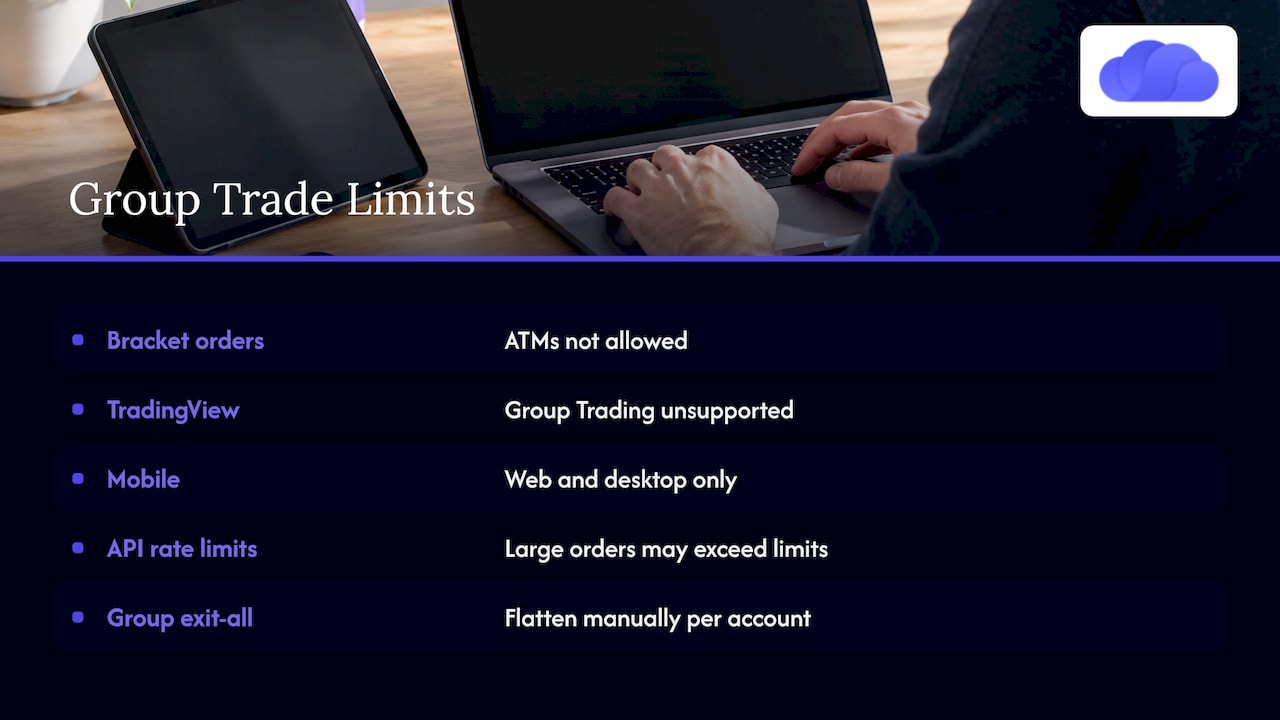
No bracket orders (ATMs). Apex's help center says bracket orders are not allowed in groups. An ATM is a preset stop and target that attaches to your entry. Without it, you must place protective stops on each account yourself or use another approach. If your edge depends on a bracket going live the instant you are filled, test that before you commit. A page that covers order types group trading skips explains why these gaps matter when you plan your platform.
No TradingView. TradingView's own support page states that Group Trading is not supported: orders go to one selected account only. Apex's help center says the same, that group trading is available only from within the Tradovate platform.
No mobile. Tradovate's support article says Group Trading is only available on web and desktop and is not available on the mobile app. If you manage trades from your phone, you will be placing them account by account.
Rate limits on big groups. The same article warns that large group orders may exceed API rate limits. If you run many accounts, size your groups sensibly and watch for rejected orders.
No exit-all across the group. Tradeify's help center says its Exit All Positions Cancel All control does not work across a group, so flattening is a manual job per account. Before you size up, rehearse your flatten routine on a quiet day.
Prop firm rules to confirm before you group trade
Firm rules change, and what you read here can be out of date by your next payout. We reviewed the firms' help center pages in November 2026. Use them as a starting point and confirm on the firm's own help center before relying on anything.
- Apex Trader Funding: the help center describes a Group Trading page for Tradovate users with more than one active account. Read it for the brackets restriction and the group selection rule.
- Tradeify: its guide says group trading is for accounts you own and manage, and that copying other strategies or copy trading with others is not permitted. It also says third-party copiers are used at your own risk with no firm support.
- Lucid Trading, MyFundedFutures and TakeProfit Trader: check each firm's help center for its current wording on copy trading, automation and multiple accounts. If the wording is ambiguous, email the firm and keep the reply.
A few things to check in every case:
- Is copying between your own accounts allowed? Most firms that permit it limit it to accounts in your own name.
- Do the same trades on many accounts raise consistency or payout flags? Identical trades across accounts are expected when you copy, but your payout rules still apply per account.
- What does the firm say about automation? Some distinguish group trading in the platform from outside software.
- Which drawdown type applies? Identical entries mean identical drawdown pressure on every account at once. A single bad trade can fail them all together.
For firm-by-firm detail, see our list of futures prop firms that allow copy trading and the overview of how prop firm rules affect trade copying. Topstep and Alpha Futures do not run on Tradovate, so Tradovate Group Trade does not apply to them.
Managing risk when one click hits every account
Group trading magnifies both your edge and your mistakes. A few habits that matter:
- Match accounts in a group by size. Similar balances and drawdown limits mean one contract count suits them all.
- Know each account's distance to its loss limit. An account that is $300 from its limit should not sit in the same group as a fresh account.
- Build separate groups for evaluations and funded accounts. Your funded accounts are where payouts come from, so they deserve their own sizing.
- Check fills after every order. Group orders can be rejected on one account for a margin, size or rule reason while the rest go through, leaving you uneven.
- Use platform-level limits. Daily loss limits you set on Tradovate are enforced by the broker side, not by something running on your screen.
When a copier fits better than a group
Group Trade fits a trader who stays at a desktop, trades with plain orders and keeps accounts evenly sized. A copier fits if you want to trade one leader account the way you normally do, brackets included in your routine, and have the other accounts follow, or if you need to switch followers on and off individually.
That is the situation our Tradovate copy trading guide covers in more depth, and the futures trade copier overview explains the leader and follower model. If you are on Apex, our five-step Apex to Tradovate walkthrough shows the connection process.
> ## Our view on group trading > > Group Trade solves a real problem, and for a small, evenly sized set of accounts it is a reasonable place to start. Where traders run into trouble is the multiplication rule, the missing brackets and the lack of mobile access. Those are the moments when you wish you could trade one account and let the rest follow. > > That is why we built TradeDupe only for Tradovate prop firm traders. You connect through Tradovate's official OAuth flow, so your password is never stored and nothing runs on your PC or VPS. You choose a leader account, and every fill on it is mirrored to the follower accounts you have enabled. Per-account copy toggles let you pause one account without touching the others, and rogue-trade detection flags follower trades the copier did not place. > > Daily loss limits and profit targets are set on Tradovate, so the broker enforces them. We think a prop trader should have that protection on every account, not just on the one on screen. > > Andres
Trying it on your own accounts
If you want to see the leader and follower workflow on your own Tradovate accounts, TradeDupe plans start at $20/month billed yearly for Standard, which covers 2 connections with 10 accounts each. Pro is $45/month billed yearly and Elite is $90/month billed yearly. Monthly billing is $30, $60 and $120 respectively. Every plan includes a 7-day free trial with one-click cancellation. Details are on the pricing and copier page.
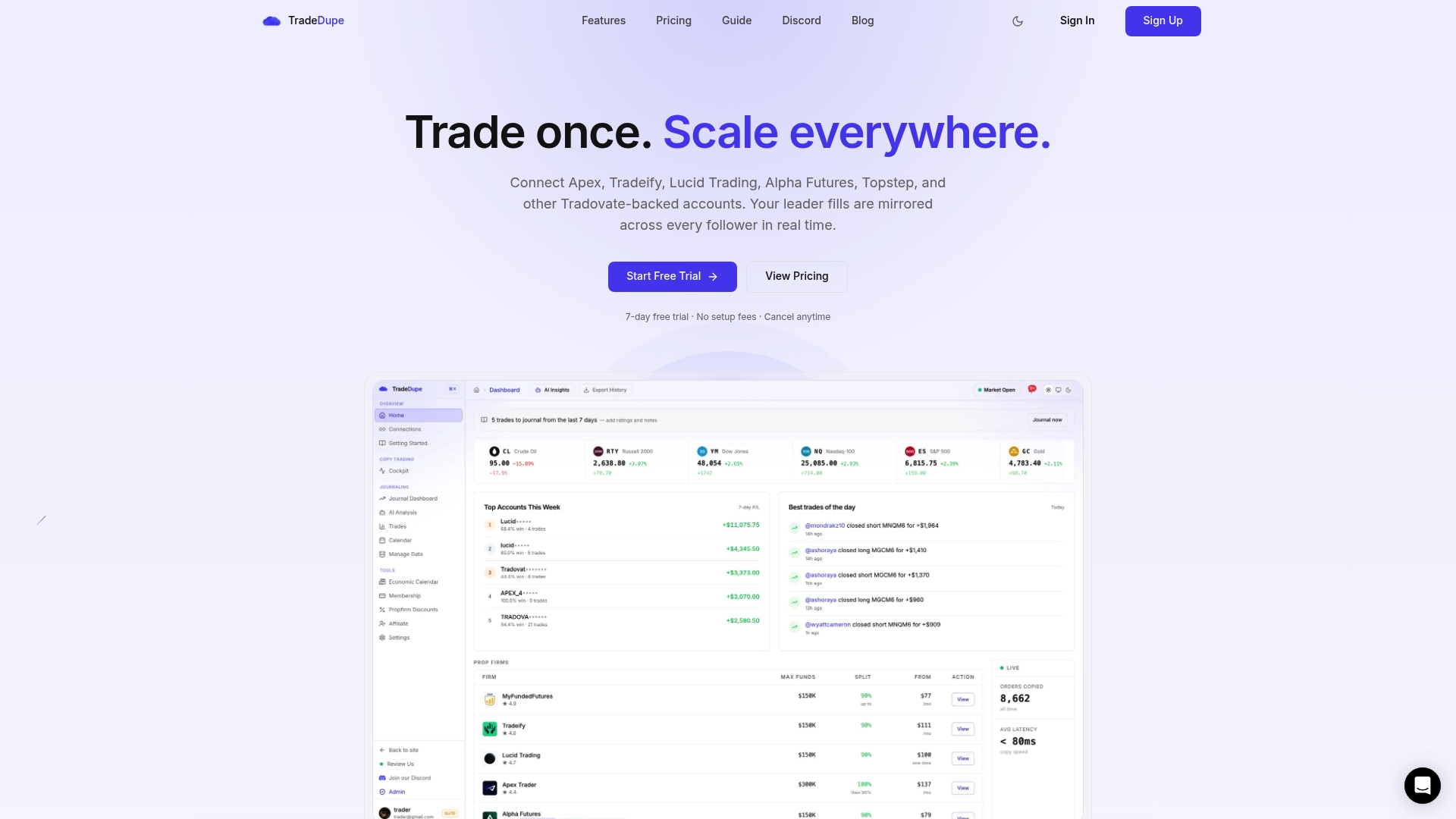
Plans are flat rather than charged per account, and Pro and Elite add AI trade analysis, custom alerts and Discord webhook alerts. You can also check our security page for how the OAuth connection works.
FAQ
Can you group trade on Tradovate mobile?
No. Tradovate's support article says Group Trading is only available on the web and desktop apps, not on the mobile app. From your phone you would place orders on each account separately.
Can you use Tradovate group trading in TradingView?
No. TradingView states that Group Trading is not supported there and that orders can go to only one selected account at a time. Apex's help center also says group trading works only inside the Tradovate platform.
Can you use bracket orders with Tradovate Group Trade?
Not inside a group. Apex's help center states that bracket orders (ATMs) are not allowed in groups. Place your stop and target another way, and confirm the fills on each account.
Is Tradovate group trading allowed on my prop firm account?
It depends on the firm. Apex and Tradeify both describe group trading in their help centers, with Tradeify limiting it to accounts you own and manage. For Lucid, MyFundedFutures and TakeProfit Trader, confirm the current wording with the firm before you rely on it.
Can you have multiple Tradovate accounts?
Yes. Prop firm evaluation and funded accounts are commonly provisioned as separate Tradovate accounts, and Group Trade is built for managing several of them together. Apex's help center says the feature is on for any user with more than one active Tradovate account.
Sources
- Tradovate Group Trade, NinjaTrader support
- Tradovate Group Copier, Apex Trader Funding Help Center
- Tradovate Order Entry & Copy Trading, Tradeify Help Center
- Is Group Trading available? TradingView support
- NinjaTrader Clearing, LLC FCM disclosure document, July 31, 2025
- Delayed Quotes: When Individual Investors Should Pay for Live Data
Recommended
- Tradovate Copy Trading: Pro Setups for Multi-Account Traders
- Tradovate multi-account trading: Master your ecosystem
- Tradovate Trade Copier | Real-Time Account Sync
- Rogue Trade Detection for Tradovate Copy Trading \(2026\)
For educational purposes only. Not financial advice. Futures trading involves substantial risk of loss and is not suitable for every investor.